Resources Access Guide
Overview
This guide explains how to request access, configure SSH authentication, and connect to the SCI-uc Advanced Computing Resources.
Request Access
To access the SCI-uc clusters and its computing and storage resources, you must first request an account by following the instructions provided in the official documentation:
This guide explains the required information and steps to submit your access request.
SSH Key Requirement
Access to SCI-uc managed clusters is strictly provided via frontend nodes (ui.sci.unican.es) through secure SSH connections using public-key authentication.
Generate a New SSH Key
On your local machine, run:
ssh-keygen -t ed25519 -f ~/.ssh/id_ed25519-ui
When prompted:
- Enter a secure passphrase
- Press Enter to accept the default file location
This will generate:
- Private key:
~/.ssh/id_ed25519-ui - Public key:
~/.ssh/id_ed25519-ui.pub
Send Your Public Key
Display your public key:
cat ~/.ssh/id_ed25519-ui.pub
Copy the full output and send it to:
Include:
- Your username (if known)
- A short request to install your SSH key
- The full contents of your public key
Connect to the Clusters
Once your request is approved, you will receive your username.
To connect:
ssh -i ~/.ssh/id_ed25519-ui <username>@ui.sci.unican.es
You will be prompted for your SSH key passphrase (if your private key is protected with one).
First Login: Set Your Password
Users initially access the frontend node (ui.sci.unican.es) using their configured SSH public key.
After your first successful login, you must set your personal account password:
passwd
You will be prompted for:
- Your current temporary password (provided during account activation, if applicable)
- Your new password
- Confirmation of the new password
Example:
$ passwd
Changing password for user <username>.
Current Password:
New password:
Retype new password:
passwd: all authentication tokens updated successfully.
This password is used for authentication on internal cluster resources where password-based access is required (for example, when connecting between frontend and compute nodes if applicable).
Access from Windows - PuTTY (Optional)
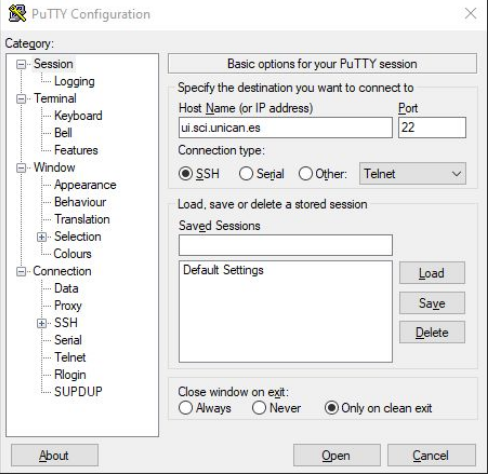
Basic Configuration
Use the following connection details:
- Hostname:
ui.sci.unican.es - IP:
193.144.184.31
Steps:
- Enter the hostname or IP
- (Optional) Save the session
- Click "Open"
Set Default Username (Optional)
To avoid entering the username each time:
Connection → Data → Auto-login username
Save the session after configuring it.
Once Logged In
After connecting to the UI node, you can:
- Submit jobs using Slurm (
srun,sbatch,salloc) - Access shared storage (
$HOME, Lustre) - Transfer files using
scporrsync
Resource Limits on the UI Node
The UI node is intended for lightweight tasks only.
Check your limits with:
ulimit -a
Enforced Limits
| Resource | Soft Limit | Hard Limit | Description |
|---|---|---|---|
| Memory (virtual) | 2 GB | 4 GB | Per process |
| Processes (nproc) | 512 | 1024 | Max processes/threads |
| CPU time | 120 min | 240 min | Per process |
For heavy computations, use the Slurm scheduler.
Cron Jobs
You can schedule lightweight background jobs on the UI node.
Edit Cron Jobs
crontab -e
List Cron Jobs
crontab -l
Note: Cron jobs are subject to the same resource limits as interactive sessions.