Putty configuration
Basic configuration
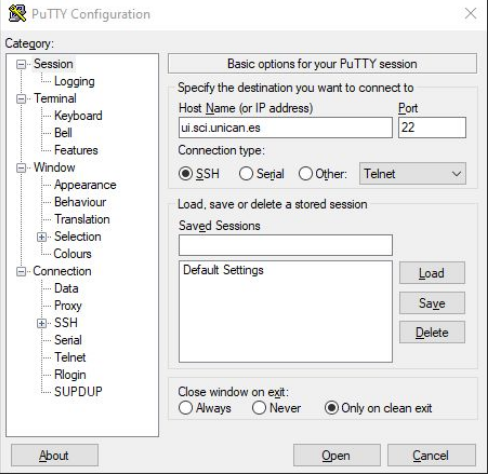
1. Enter Hostname or IP
To connect to UI you only need to enter your hostname or ip.
- Hostname: ui.sci.unican.es
- IP: 193.144.184.31
!!! important If you do not already have SSH keys created, you can follow this documentation: ssh-key-requirement
2. Save access settings
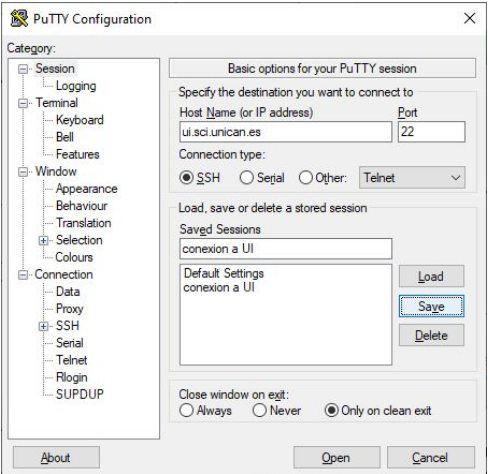
This step is not necessary but it is recommended to save the parameters we have configured. It is only necessary to fill in the "Saved Session" field with an identifying name and press the "Save" button.
3. UI connection
To establish the connection it is only necessary to click on the pre-saved session and press the "Open" button. This process will open a terminal where you will have to enter your username and password.
Configuration with predefined user name
1. Login with predefined user name
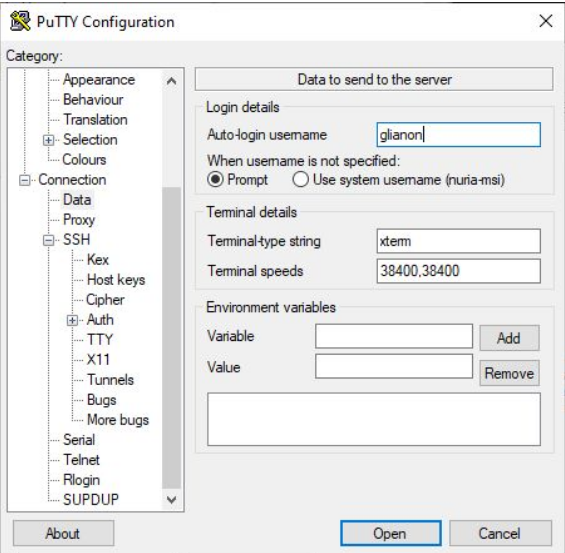
This step is recommended in case the username is the same for all saved connections. To configure the username it is necessary to follow the following path and fill in the field "Auto-login username".
2. Save access settings
3. UI connection
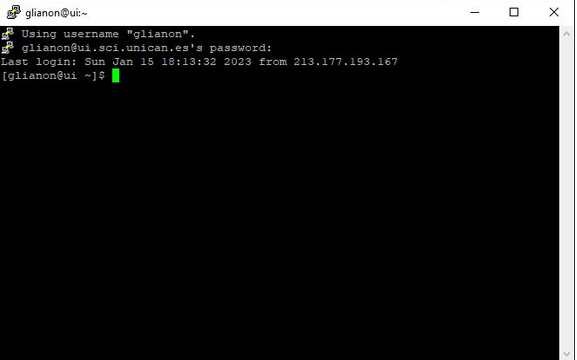
You can see that it does not allow you to enter the user name, only the password for that user.
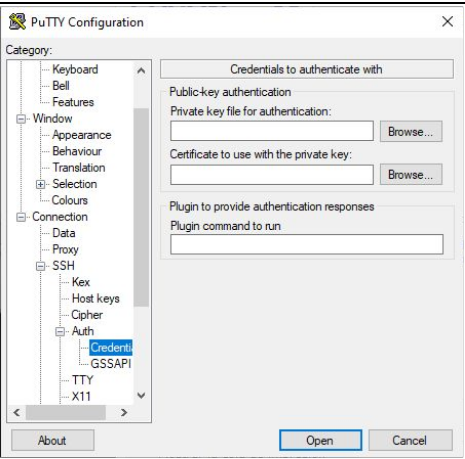
SSH keys configuration
If you do not already have SSH keys created, you can follow this documentation: ssh-key-requirement